|
|
|
| |
|
|
Backing up and restoring your notes
To protect your notes from being permanently lost in the event of accidental deletion you need to backup your data.
With Sticky-Notes, you have options to recover your notes if you experienced a computer failure or need to revert to an older version of your notes.
Backup notes
All notes are kept in the Sticky-Notes folder. There are a couple of ways to do it - you can either create a backup manually by exporting your notes or use the Auto-Backup option.
| Manual Backup | Auto Backup | Restore Notes |
Manual backup
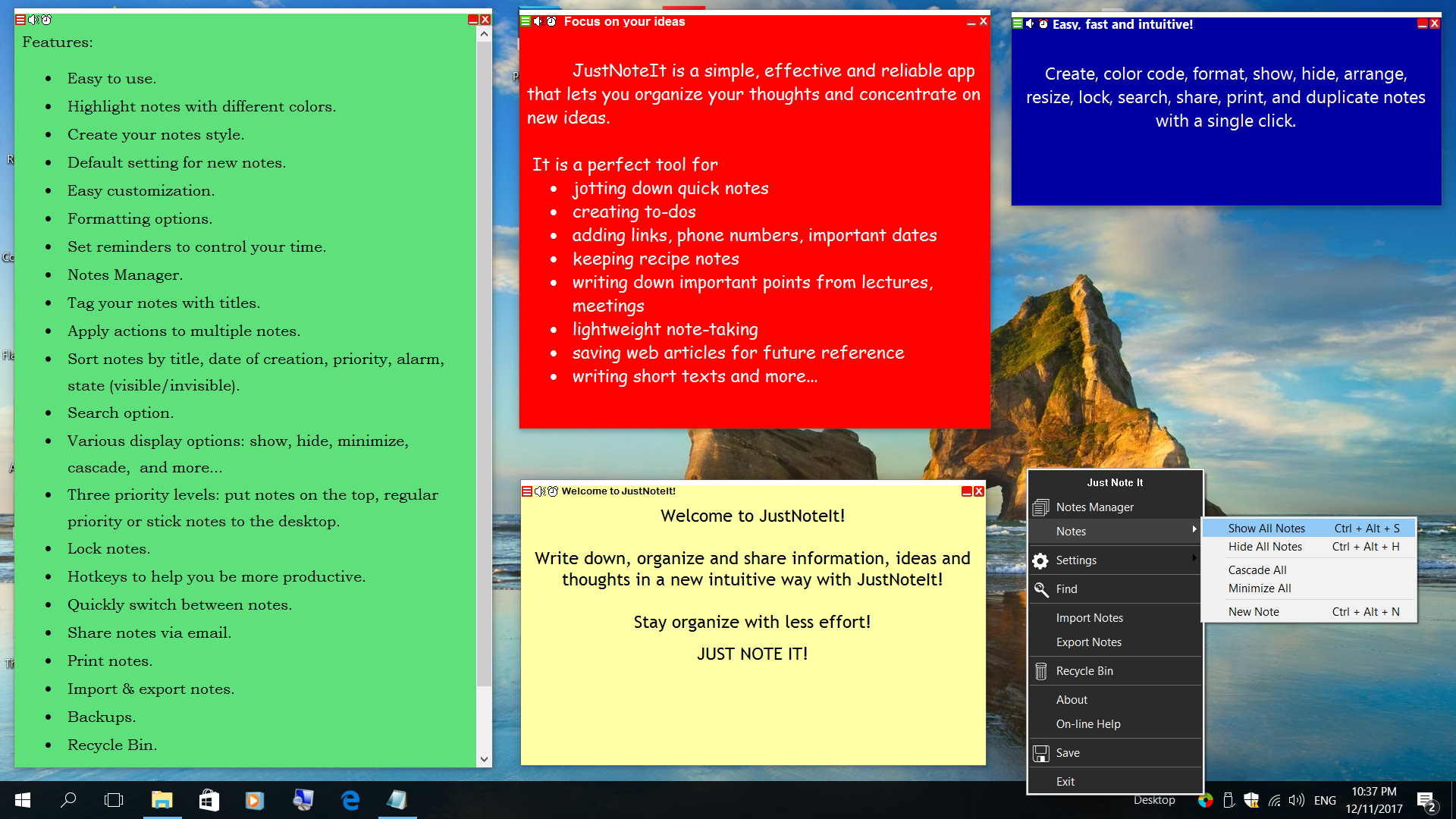
To create a backup file, right-click the tray icon and choose Export Notes from the Main menu.
This will prompt you for the directory where you would like to save the backup.

Auto-Backup
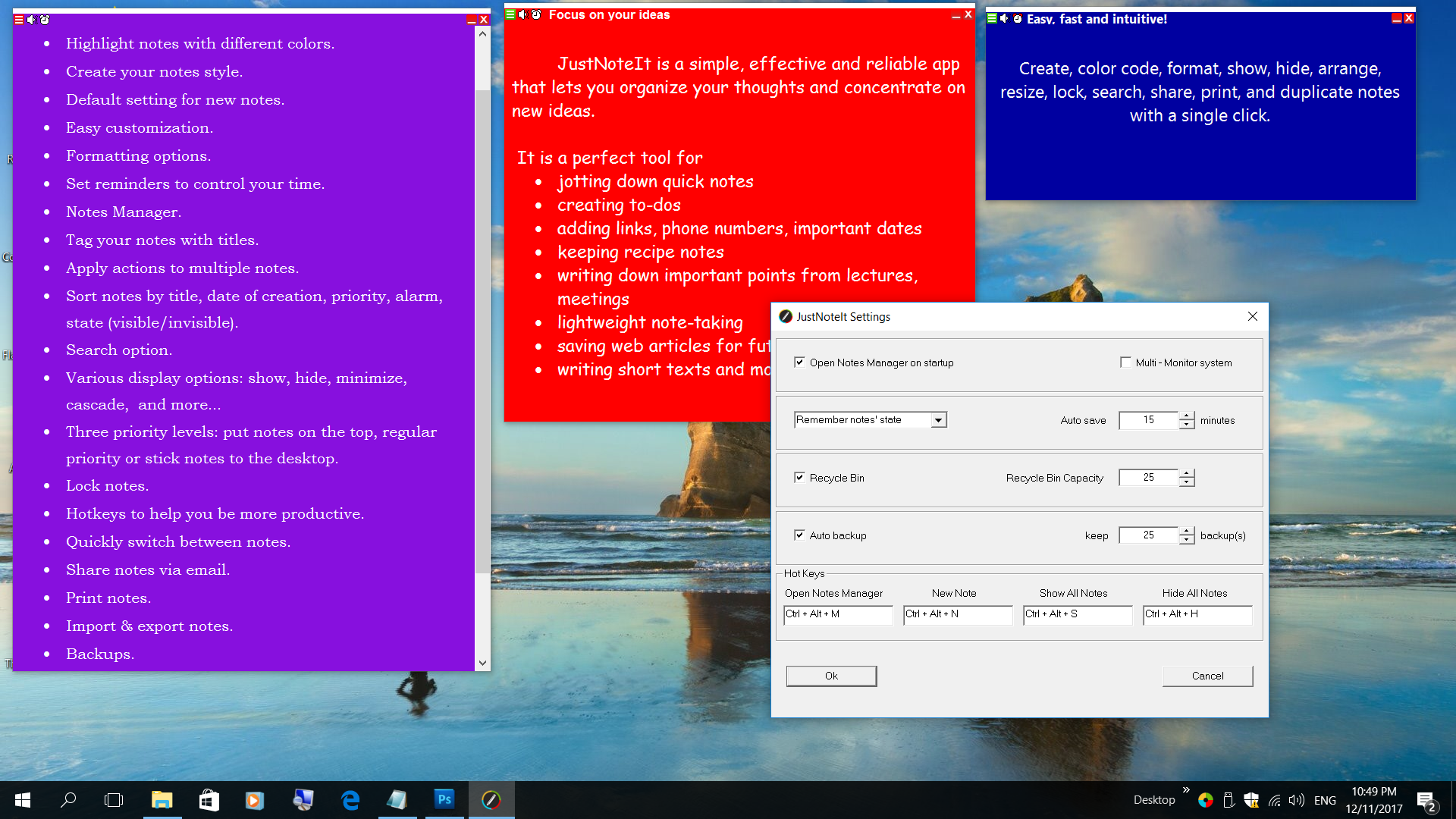
Unless you have disabled the Auto-Backup option, automatic backups are made every time you exit the program or shut down your computer. The backups will be saved in the Sticky-Notes folder.
Restoring your Data
Regardless of which backup method you used (either Auto-Backup or by exporting your notes), you should restore your notes using the Import option.
To restore your notes from a backup:
1. If the program starts normally, start from the second step.
If you are not able to start the program, delete sticky-notes.dat located in C:\Program Files\Sticky-Notes\ for 32-bit Windows system or C:\Program Files (x86)\Sticky-Notes\ for 64-bit Windows system and then run the program
2. Double-click the desktop icon or right-click the 'S' in the system tray (near the Windows clock) and select 'Import notes'.

To restore notes from the automatically created backup navigate to the Sticky-Notes folder (C:\Program Files\Sticky-Notes\ for 32-bit version and C:\Program Files (x86)\Sticky-Notes\ for 64-bit version).
If you need to restore notes from a backup made manually, navigate to the folder where you saved it
3. Select the .dat file you would like to import and click Open.
|
|
|
|
|
|