|
|
|
|
|
| |
|
|
Free Sticky Notes
Sticky Notes is a free tool that enables you to place virtual sticky notes on your Windows desktop and set up quick reminders. With Sticky Notes, you can easily store, organize and share all of your important information. Sticky notes look like traditional paper sticky notes, but provide more functionality.
Latest release - Sticky Notes 1.118, February 3, 2012
Desktop Notes
Easy to use free sticky notes software
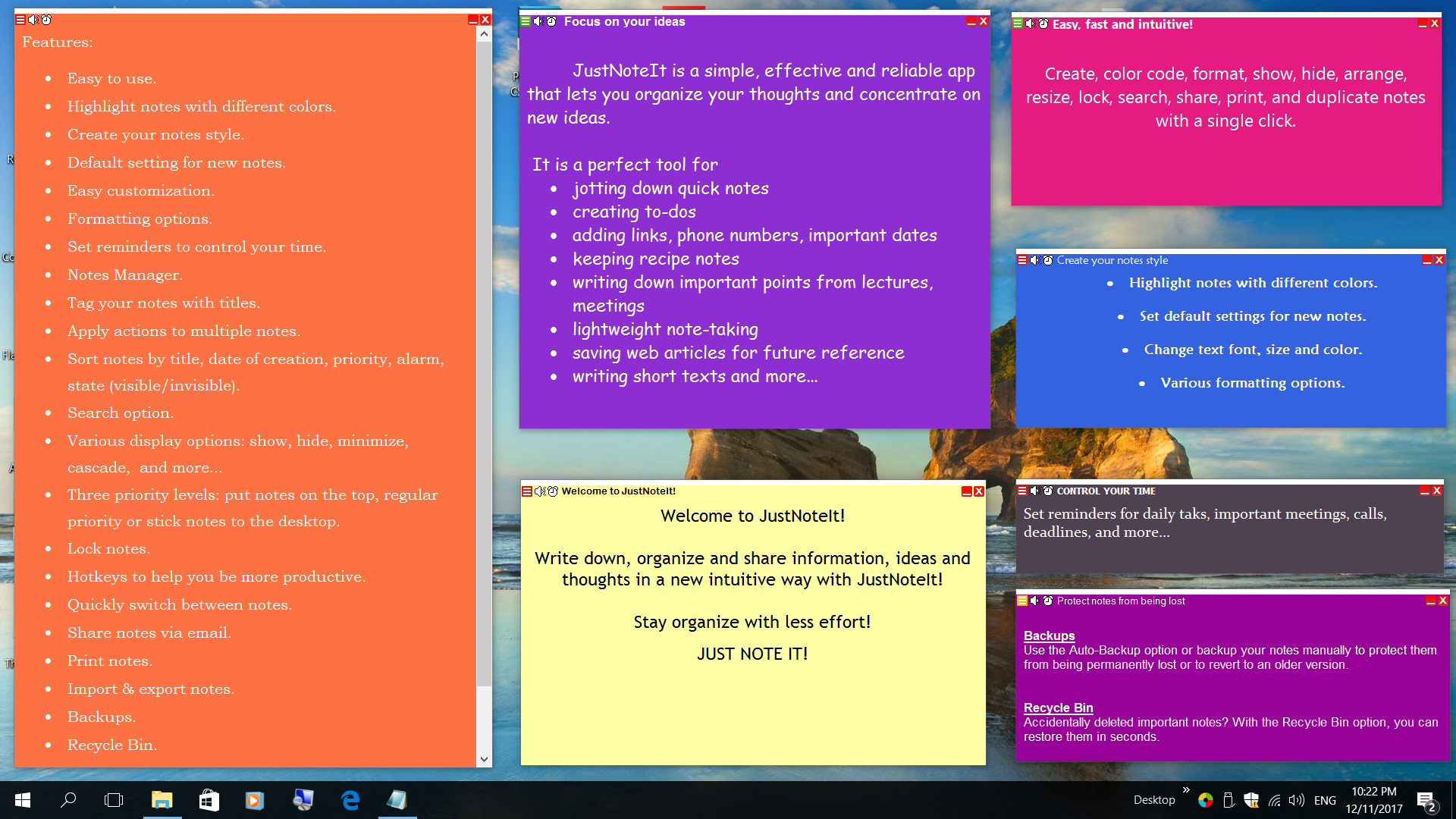
Sticky Notes helps you become more productive by keeping the information you need at your fingertips. The program offers useful options to easily edit, organize, share, manage and instantly access your notes.
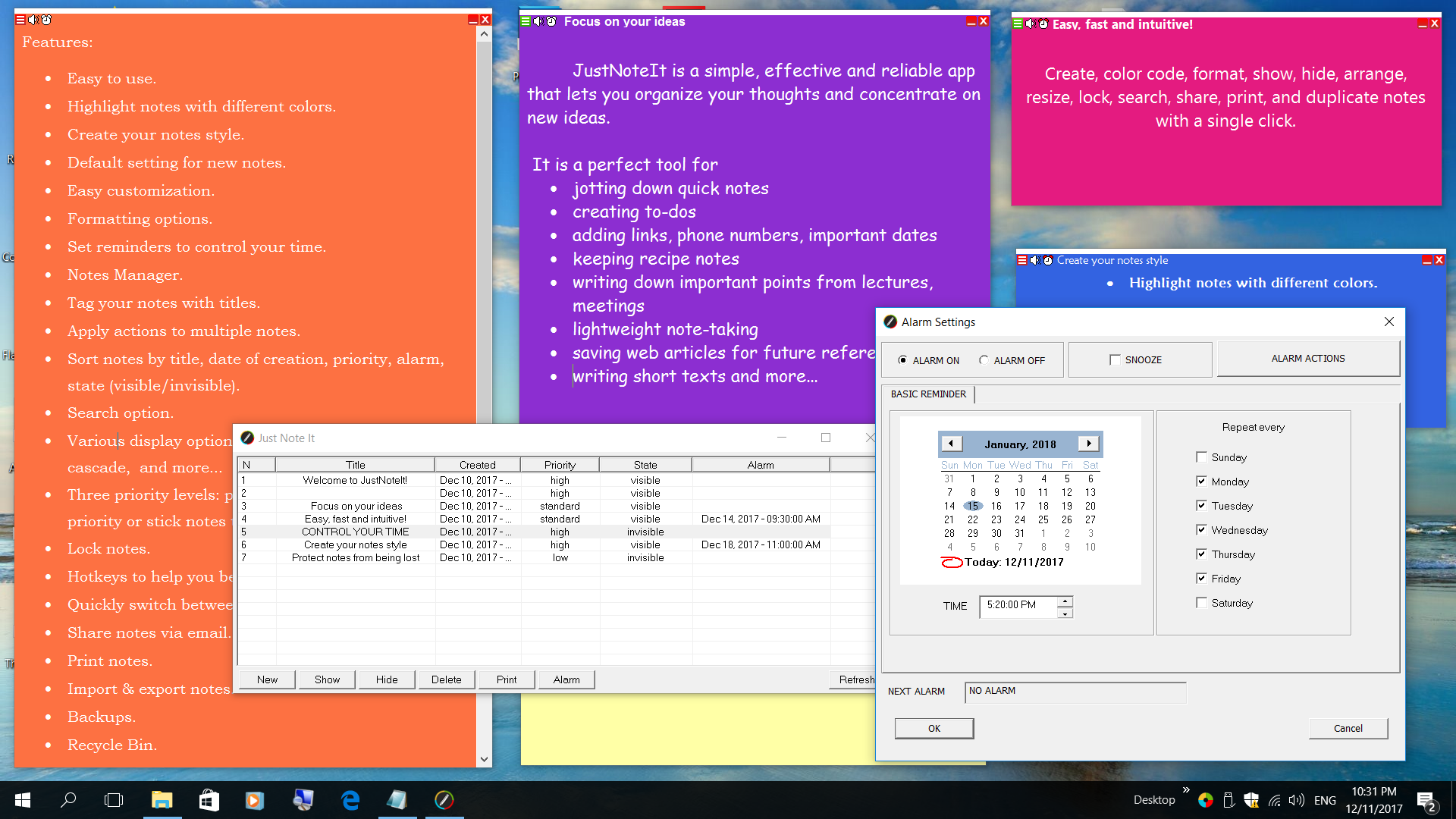
Need to record your ideas, addresses, phone numbers, web links, and other information? Sticky-Notes makes it easy! You can create as many notes as you like, efficiently organize them on your desktop, change their size and color, and share them with others. Sticky Notes ensures you won't miss any event again. Just create a new note and set up a reminder with a couple of clicks. The reminder option offers full customization and complete configurability, including different alarms, snooze and repeat options.
|
|
|
|
|
|
|
|
|
| |
|
|
Sticky Notes Main Features
Whether you are working on a project, report or presentation, planning a revision, gathering data on the web, or need to write down information, Sticky Notes is a good alternative to paper notes. The program makes it easy to take and organize notes for work, home and school. Just run Sticky Notes to have it available for quick note-taking and create notes without interrupting your work. Its simple interface doesn't require any special skills to work with.
Sticky Notes provides quick access to the options and commands you need for note taking, customizing, formatting and managing notes.
With all of your information at your fingertips, Sticky-Notes enables you to share your notes by sending them online.
Need to work with your notes on different computers? Install the program on a flash drive and run it on any computer you need or you can simply export and import your notes.
|
|
|
|
News
Sticky Notes has been updated to v.1.118. I've added some new options and fixed the few minor bugs. I would like to thank everyone who sent me suggestions and bug reports.
Here's the full list of changes:
- With the release of the new version users will be able to take advantages of the new option - basic reminder with snooze and different alarms.
- Improved Notes Manager:
- Added option to print selected notes from the Notes manager.
- Added auto refresh so in most cases you do not need to refresh information manually.
- Now Notes Manager shows alarm time and you can enable or disable alarm from it.
- Print and Alarm options added to the Notes Manager's right click menu.
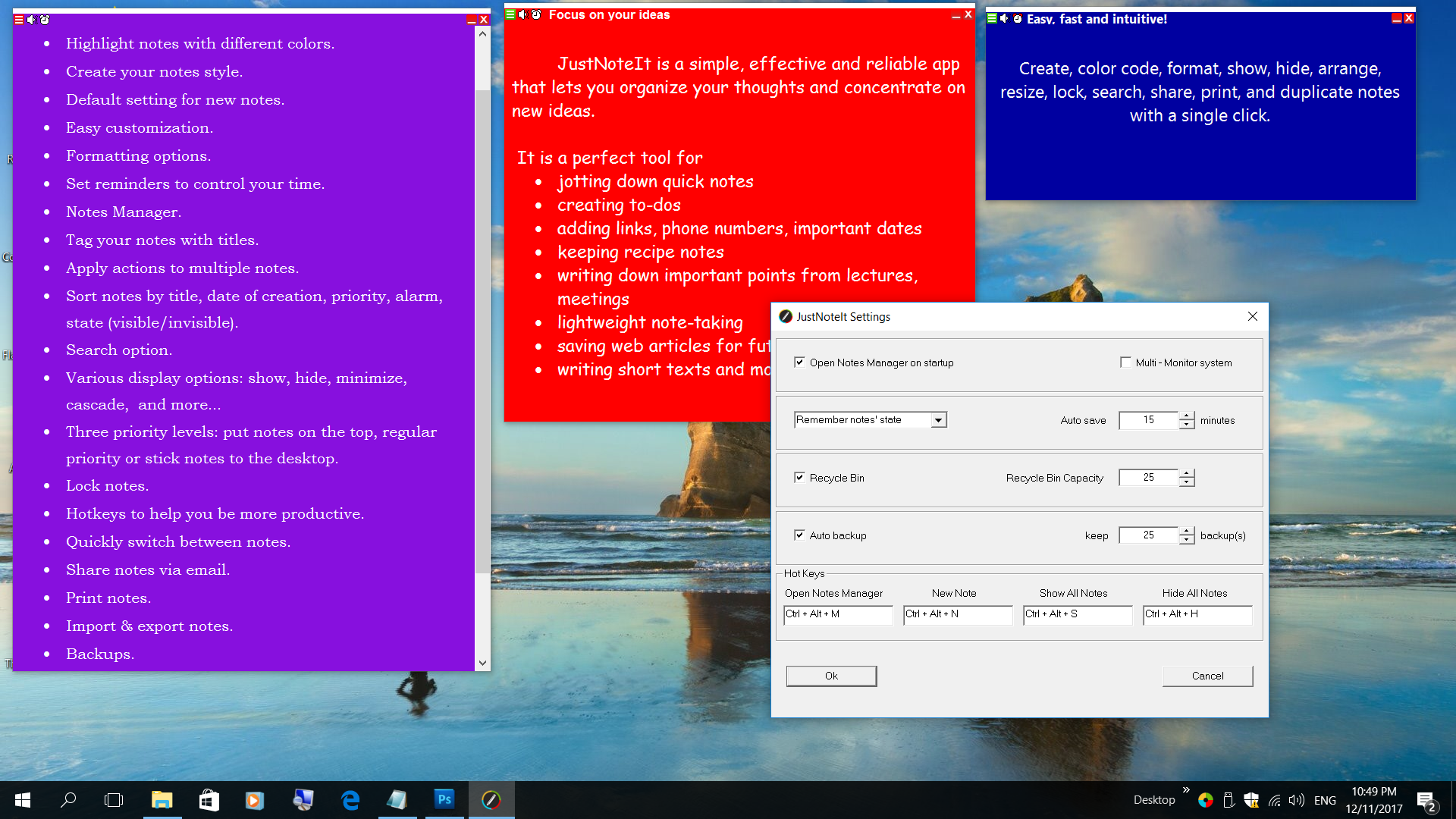
- Now you can open the Notes Manager with Ctrl+Alt+M hot key combination. You can easily change hot key in the program settings.
- Added 'Open Notes Manager on startup'.
- Fixed a minor bug with reading notes.
|
|
|
|
|
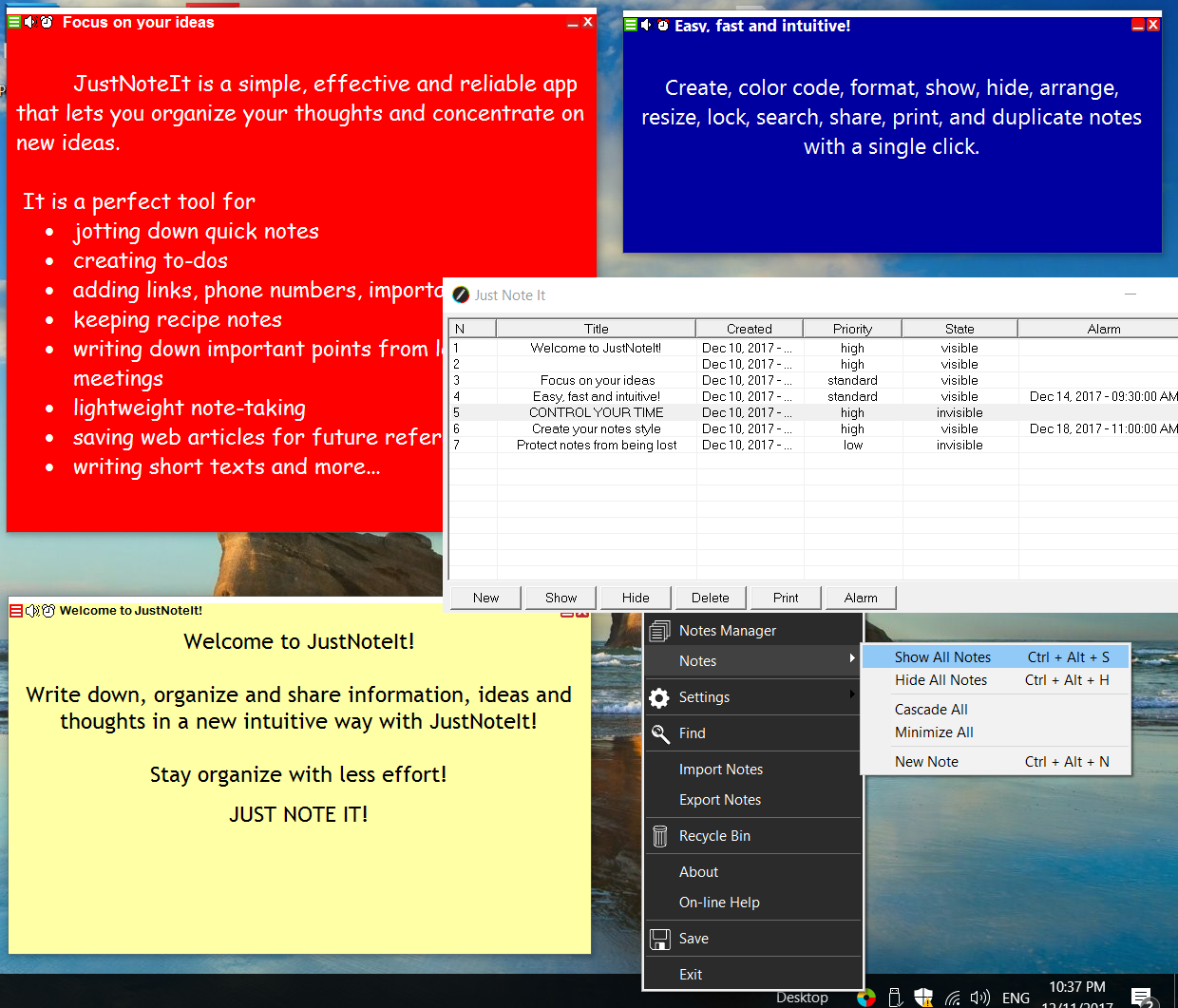
When you run Sticky-Notes you will be presented with the Notes Manager window that shows a list of your notes and reminders. When you run the program first time this list is empty. In the Notes Manager window you can quickly add a new note, show, hide, delete, or print your notes or set an alarm.

If you would prefer to sort your notes and reminders by date, title, priority, state or alarm, you can click the corresponding column to view all of your notes organized the way you need.
To create a new note, simply click the New button. Enter a title for your note and place it anywhere on the screen.
|
|
|
|
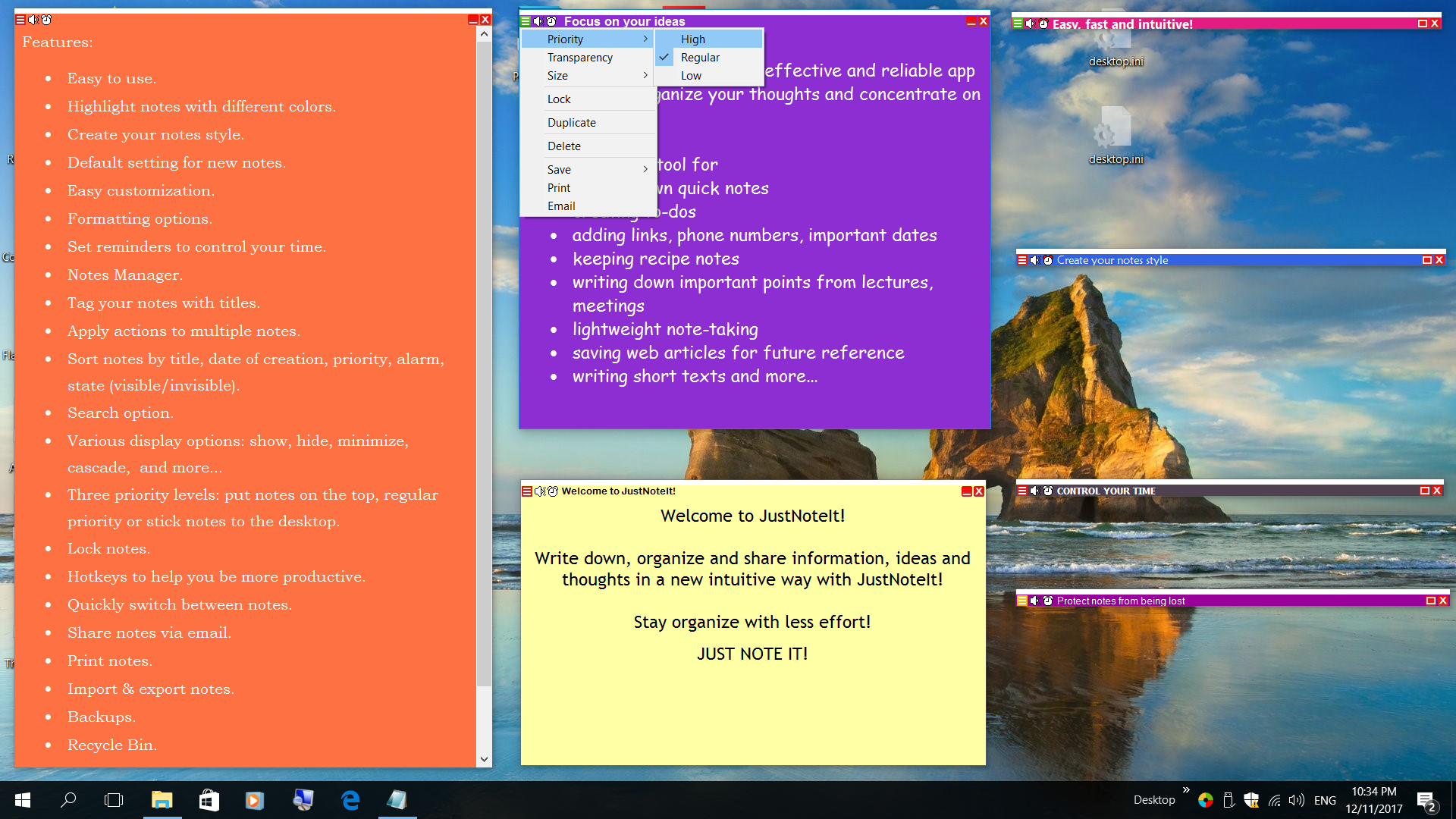
The Note context menu gives a list of actions that can be performed on a note. It helps you easily customize notes appearance and format text.
You can access the Note context menu by right-clicking on a note.
Right-click menu

|
|
With the Note menu you can quickly access the options and commands you need to work with individual notes
Note menu
The Note menu can be accessed from each note by clicking on the icon in the upper-left corner

|
|
Get Started with Sticky Notes
Sticky Notes is a free sticky notes application that works on Windows 7/Vista/2008/XP/2003/2000. You can also try to run the program on older Windows versions.
Using free sticky notes is really easy. Once you run the program, you can start creating sticky notes, color, resize, format and customize them anyway you wish, and send notes online.
Learn how to perform some common tasks with sticky notes
Create a new note
Set an alarm
Format notes
Notes customization
Save a note
Print a note
Organize and find notes
Delete a note
Share your notes
|
|
|
|
1. Create a new note
You can create a new note in four ways:
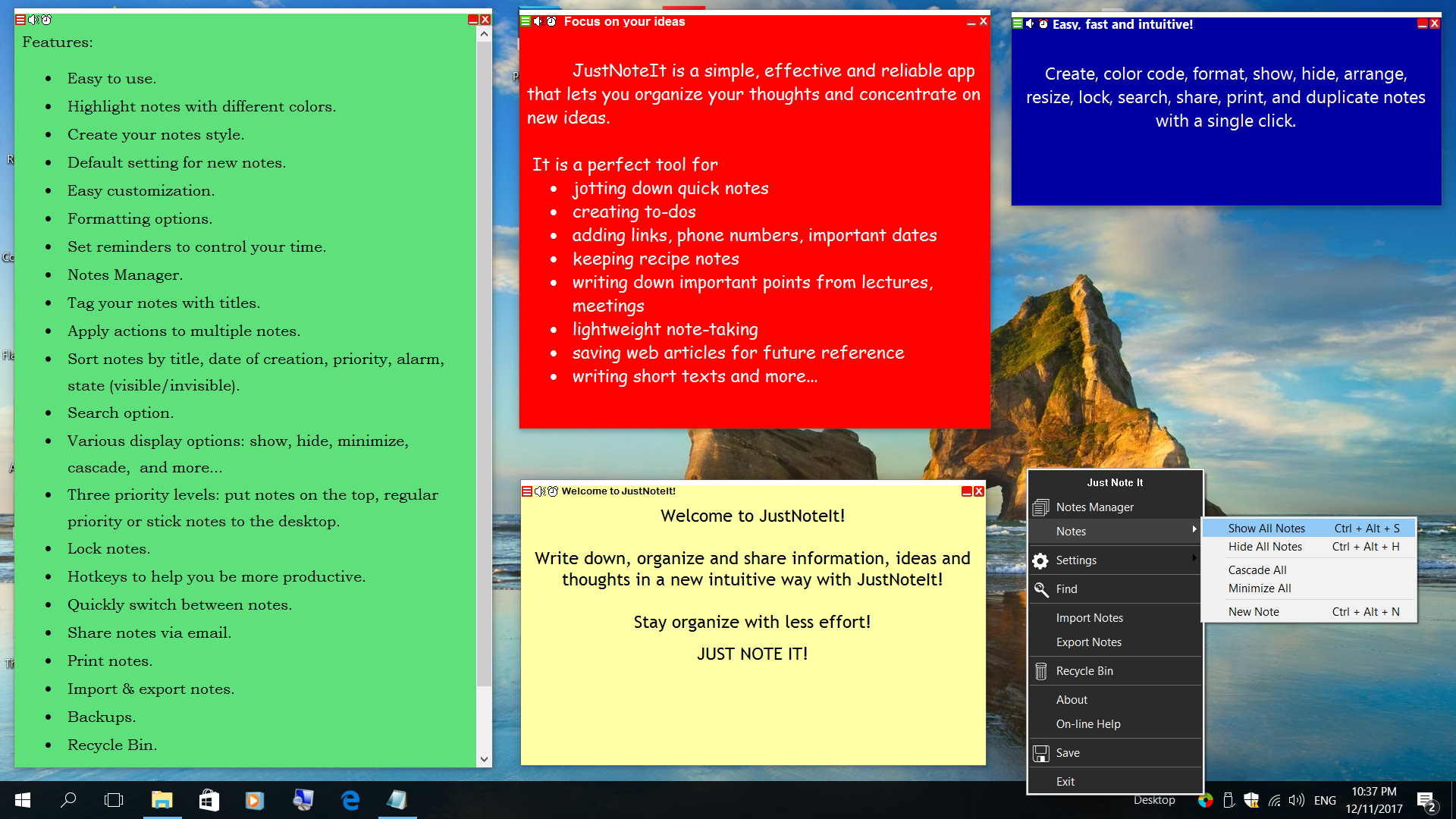
To quickly create a new note, press Ctrl + Alt + N (the default New Note hotkey combination) or double-click on the tray icon next to the system clock

Additionally you can open the Main menu by double-clicking on the desktop icon or right-clicking the tray icon and then select Notes -> New note

You can also create a new note in the Notes Manager.
Once the note is created, it is placed on the desktop. Click in the main part of the note and start typing. Once you have finished typing, you do not need to do anything - simply click somewhere on the desktop. The program will automatically save all information.
The Notes Manager allows you to manage and view your notes. You can access the Notes Manager by selecting Notes Manager from the Main Menu.
|
|
|
Sticky Notes provides hotkeys to your most frequently used commands:
Press Ctrl+Alt+H to hide all the sticky notes on your desktop. To place all of your sticky notes on top of other windows, press Ctrl+Alt+S.
|
|
|
|
2. Changing the appearance of your notes
To change the look of your note, right click on it and then select the desired option (change color, font, etc.)

To resize a note, drag an edge or corner of the note to make it larger or smaller.
|
|
|
|
3. Formatting text
Free sticky notes software offers a range of formatting options.
You can create a bulleted or numbered list, change the text size or color, apply the paragraph settings, etc.
Select the text you want to format and use the hotkeys or the format options from the right-click menu.
To move text within the same note or from one note to another note, highlight the text, move the pointer over the text, then drag the text to a new location.
|
|
|
|
4. Save a note
Sticky Notes automatically saves information while you take and edit your notes. Or you can save all of your notes manually selecting Save in the Main menu.
Notes are also automatically saved every 15 minutes. This interval can be changed in the Program settings.
|
|
|
|
5. Print a note
You can easily print out the content of the note if needed.
Click the upper left corner of the note to open the Note menu, and select Print or select the note from the list of notes in the Notes Manager and click 'Print'.

|
|
|
|
6. Organize and find notes
All notes have different attributes that can be used for searching or filtering your notes, including the date and time of creation, the priority level and title.
Prioritize notes
If you create notes with a high priority, they would stay on top of other windows.
It could happen that sticky notes with high priority overlap other windows. If you do not like it, you can change their priority to standard or low.
|
|
|
If a sticky note has a standard or low priority, it could happen that they are not fully visible. You can bring them to the top of other windows by clicking on any visible part of the sticky note. If nothing is visible, use the Show button in the Notes Manager or use the Show All Notes hotkey combination Ctrl + Alt + S
Hiding notes
To unclutter your desktop or quickly hide notes content, you can hide your notes by clicking the 'X' icon.

To hide a group of notes, you can select them in the Notes Manager or Notes list and click the Hide button.
To quickly hide all of your notes, press Ctrl + Alt + H or you can select the Hide All Notes command from the Main menu.
To bring your hidden notes back, select them in the Notes List and click Show. To show all hidden notes, press Ctrl + Alt + S
Minimizing notes
To save your desktop space and hide notes content from prying eyes, you can minimize desktop notes to display their title bars. To quickly minimize a sticky note, click the Minimize icon in the top right corner of the note.
|
|
|
If you need to minimize all sticky notes, open the Main menu, select Notes and then Minimize All.
Save you time with the 'Read note' option

Finding desktop notes
If you have a lot of desktop notes, they can overlap each other. This makes finding a particular note a bit difficult. Using the Find option, you can quickly retrieve any note you need.
|
|
|
|
|
|
7. To delete a desktop note
If you do not need a note anymore, you can delete it from your desktop.
Click the upper left corner of the note to open the Note menu and select Delete. In the dialog box, click Yes to confirm.

You can also delete a note by selecting its entry in the list of notes and then press the Delete key.
If you need to delete several notes, open the Notes Manager, highlight the notes you need to delete and press the Delete button.
If you did not disable the Recycle Bin, deleted notes are moved to the Recycle bin and you can restore them.
Sticky Notes - Free Software
|
|
|
|
|
|
|