Sticky Notes

Sticky Notes

 | EN |  ZH |  RU |  CZ | 
Download |  Sticky-Notes Manual |  Reminders |  Backup and Restore |  Settings |  Share Notes |

Sticky Notes Settings

Sticky-Notes can be customized in many different ways depending on your needs. To do this, open the Program or Note Settings window and change the options you like.

Program Settings

Notes Settings

Program Settings

Program Settings

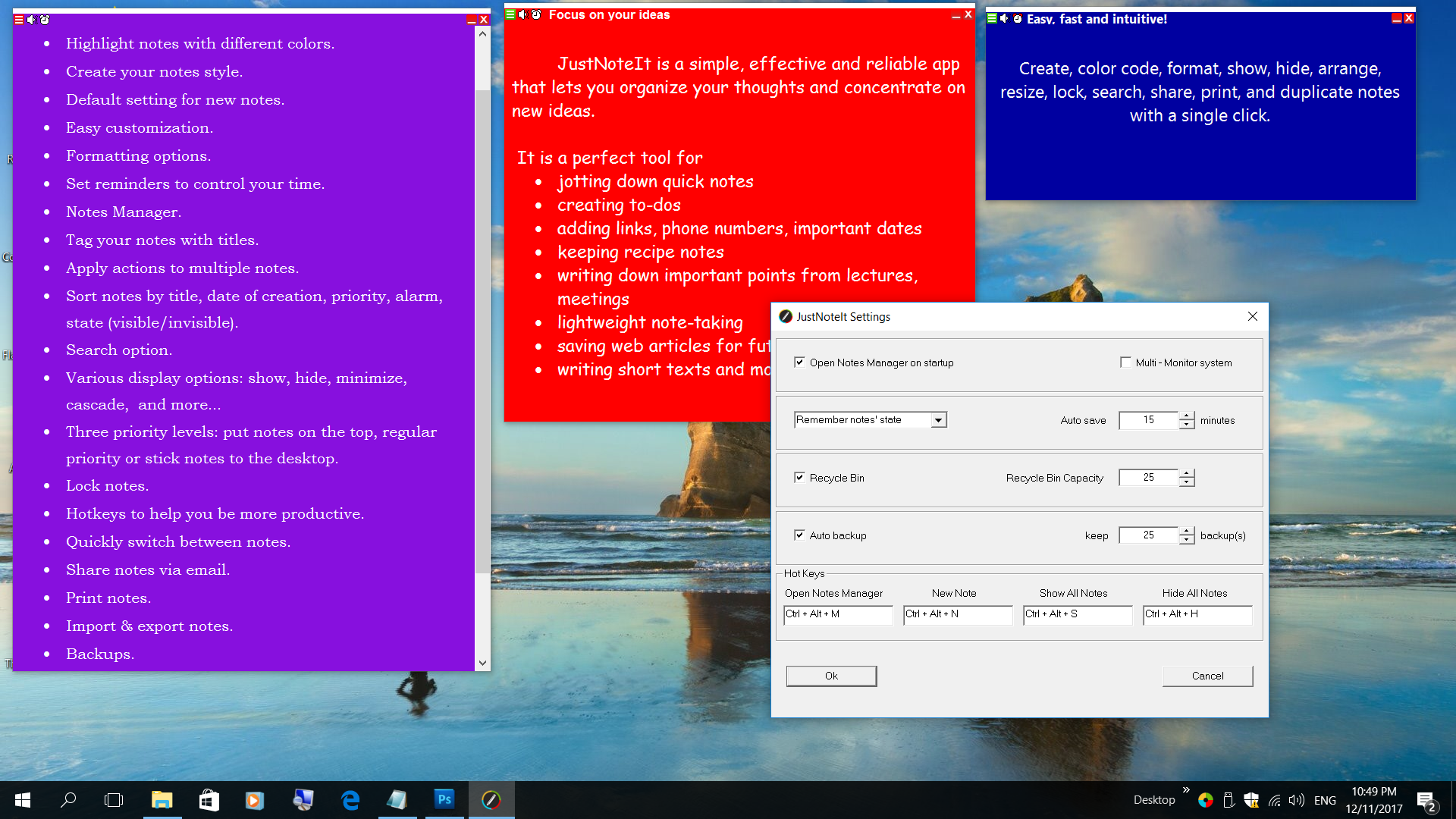
Autorun - check this option if you want Sticky-Notes to run automatically on Windows startup

Open Notes Manager on startup

Multi-Monitor system - when checked, the program will support work with several monitors

How to show notes on program startup:
Remember notes state
Show all notes
Hide all notes

Receive Sticky Notes
Opens the 'Receive sticky notes' window, where you can set the receive notes settings.

Enable - allows receiving sticky notes

Prompt - asks before receiving sticky notes

Disable - select this option if you do not want to receive notes from other computers

Read received notes - enables reading when a note is received

Beep on receiving - enables sound when a note is received

Listen Port - specify the port number for receiving notes

Move deleted notes to the Recycle Bin - when checked, notes are not immediately deleted, but put in the Recycle Bin
Recycle Bin Capacity - specify the number of notes to keep

Auto save notes every ... minutes - specify the interval that program saves your notes. When enabled, Sticky-Notes will save your notes at the specified interval that protects your notes in case of computer failure.

Auto backup - when enabled, Sticky-Notes automatically creates notes backups when you exit the program
keep ... backups - specify the number of backups to keep

Hotkeys
Open Notes Manager Ctrl+Alt+M
Create a new note Ctrl+Alt+N
Show all notes Ctrl+Shift+S
Hide all notes Ctrl+Shift+H

Notes Settings

Notes Settings

Sticky Notes provides several predefined notes settings, such as color, font, size, title, priority and transparency.
In this section you can customize all aspects of notes appearance. These settings are applied to newly created notes only.

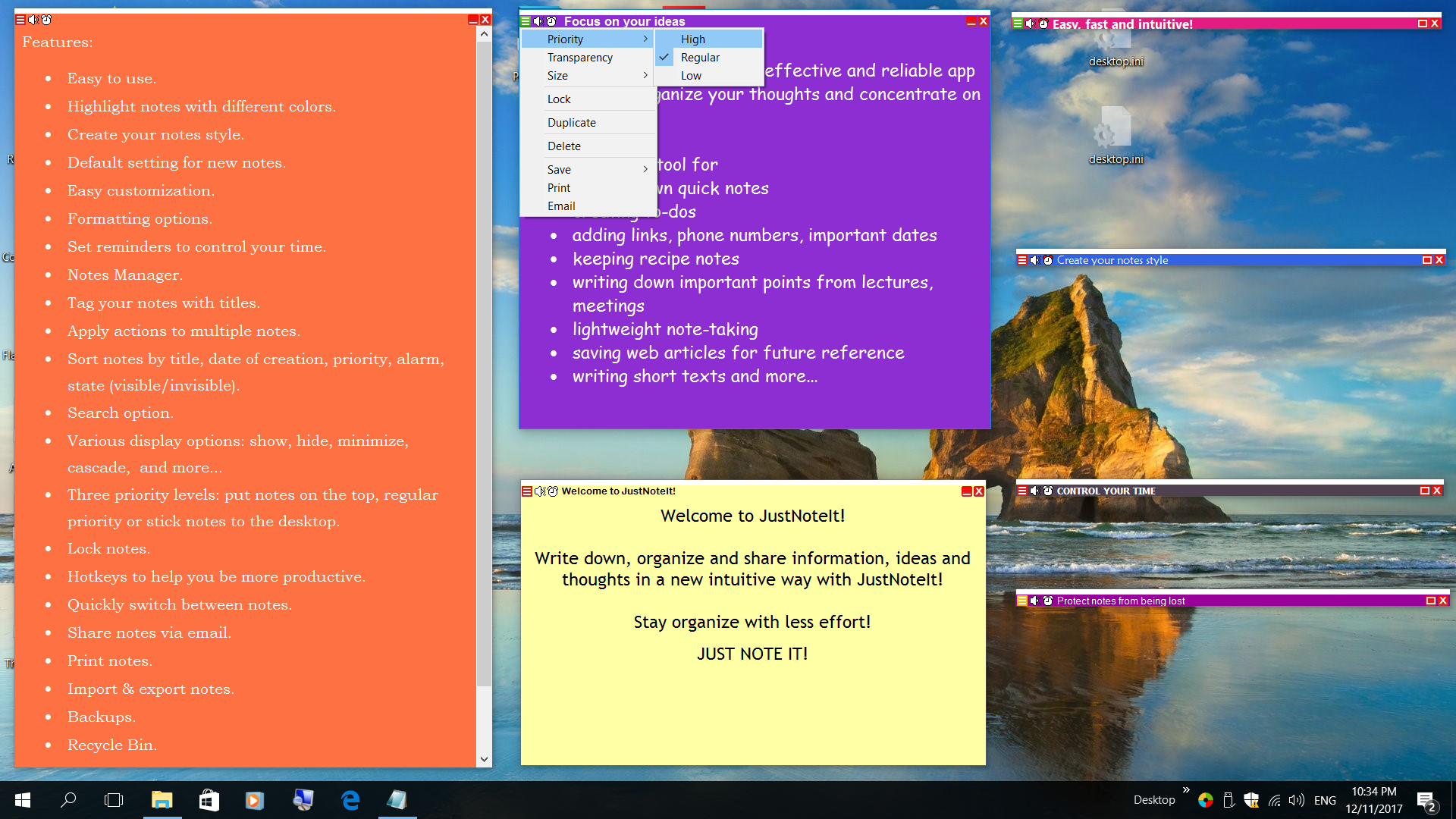
Note priority
High - check this priority, if you want to create notes that are always on top of other windows
Standard - creates notes that behave as standard windows
Low - check this to create notes on the desktop

Select random colors for new notes - when checked, a random color is used. If not checked, colors selected in the Settings window are used.

Auto lock notes after ... seconds - auto-locks your notes at the specified interval

Notes size

Transparency - choose the level of transparency. When a note is in focus, it has 0% transparency no matter what transparency setting it has.

Title Settings
The note title area, by default, contains the date and time of creation. In the Title settings you can pre-define the date and time format, or disable inserting date and time.

Date - choose the date format you want to use

Choose this option if you want Sticky-Notes to insert the time and date on the top of the note whenever a new note is created.

To change the way dates and times are displayed, select the date or time format from the drop-down menu.

If you do not need to insert the data and time, select an empty string. Changes apply to new notes (not to notes that you have already created).

Text - type in the text you want to add to a title

Text before Date - check this option, if you want to insert the text before Date

Font color - choose the title font color

Background color - choose the title background color

Font - choose the title font and size. You can choose from any font you currently have installed on your computer.

Note settings
Font color - choose the content font color

Background color - choose the note background color

Font - choose the content font and size

Use image as background - check this option if you want to use an image as background


Copyright © 2012 Andrey Golyatin All rights reserved.   Disclaimer   Privacy Policy   Contact   Site Map    Saturday, May 25, 2013