|
|
|
|
|
Run Sticky-Notes
You can start the program by double clicking the icon on your desktop or selecting Sticky-Notes in the Start menu
Sticky-Notes resides in your system tray (near the system clock) and enables you to quickly access the Main menu. If you do not see the tray icon, click the arrow in the Notification area to show hidden tray icons.
Main menu
The Main menu provides quick access to program options. You can effectively manage all your notes, access the Program and Note Settings, etc.
|
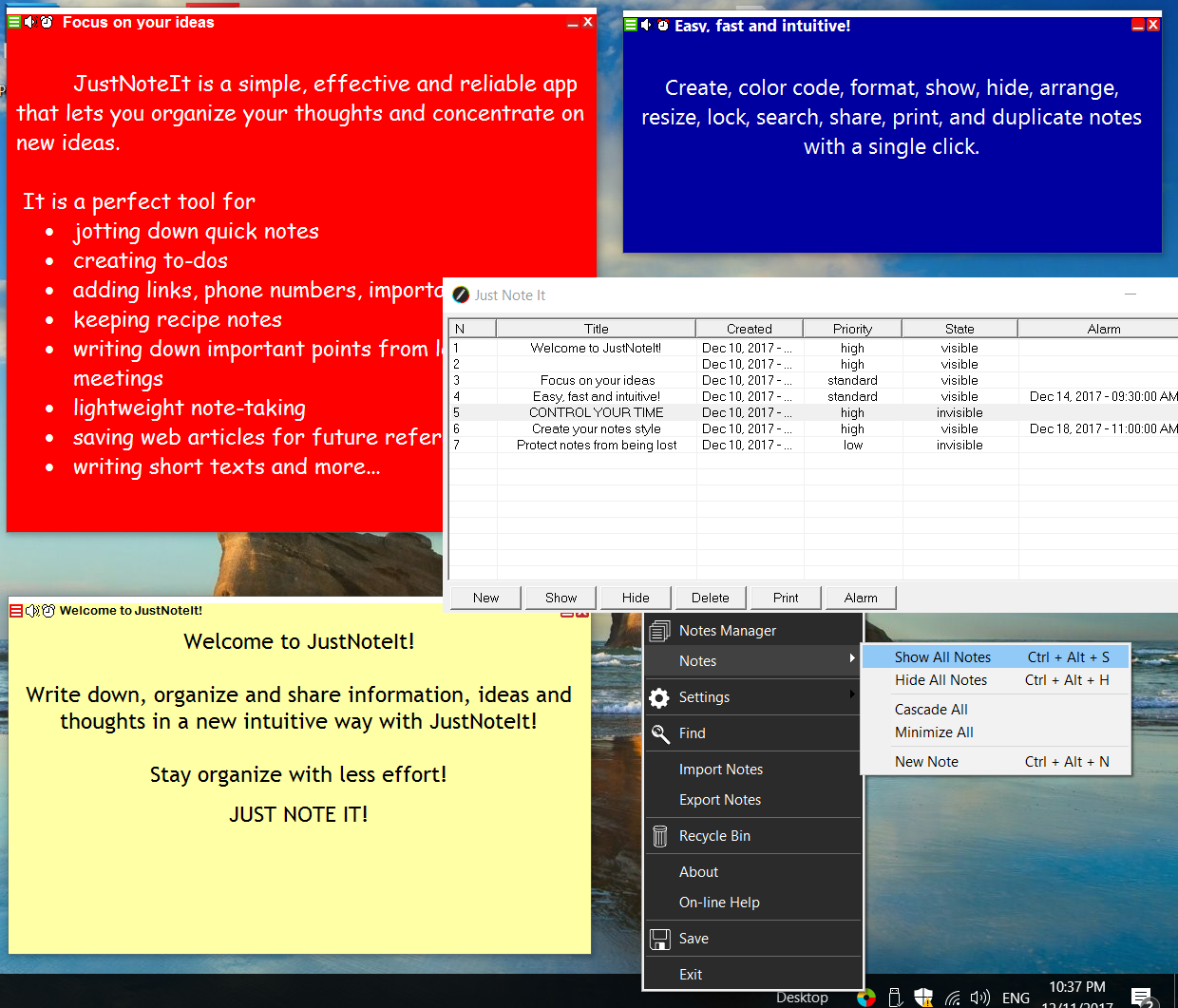
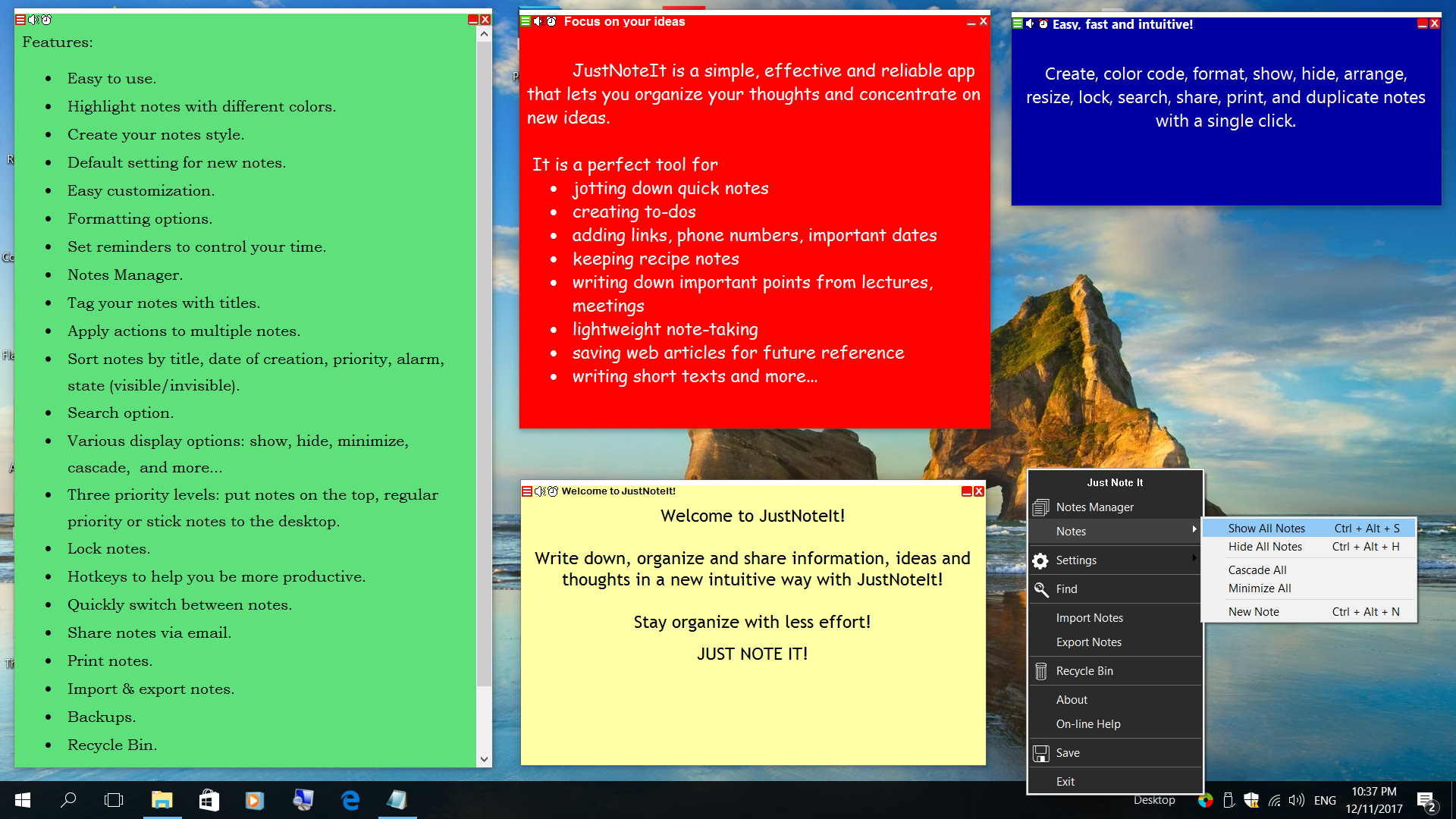
To access the Main menu, right-click the Sticky-Notes tray icon ('S' located in the Notification area near the Windows clock at the bottom of the screen)

|
|
or double click the icon on the desktop

|
Notes
This menu item provides instant access to the list of actions that could be performed on all of your notes - Show All notes, Hide All Notes, Cascade All, Minimize All.

Notes Manager
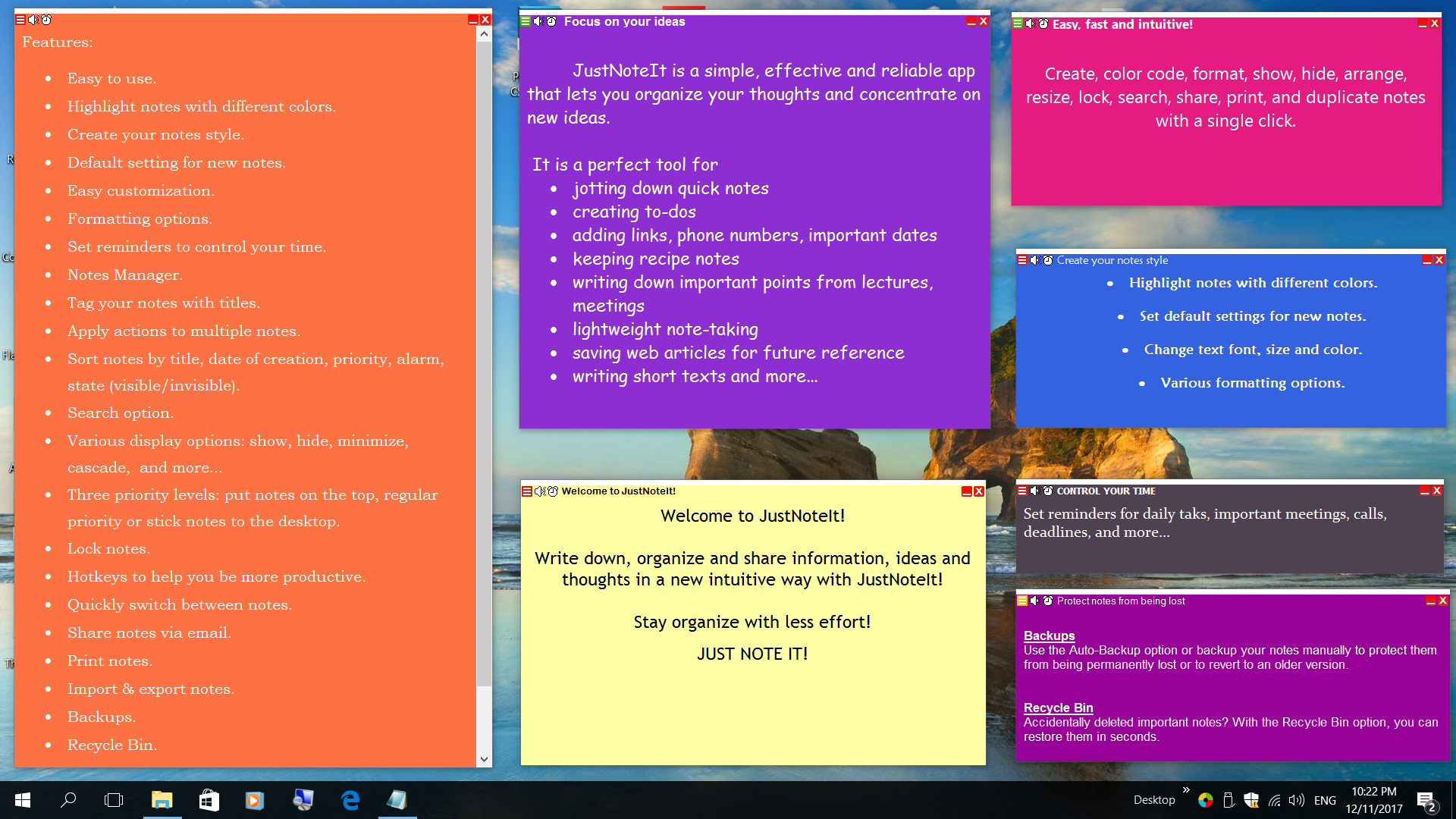
With Sticky-Notes, you can store and organize a huge number of notes in a simple way. The Notes Manager option available in the program allows you to effectively store, organize and sort notes.
To open the Notes Manager, press Ctrl+Alt+M or select Notes Manager from the main menu.
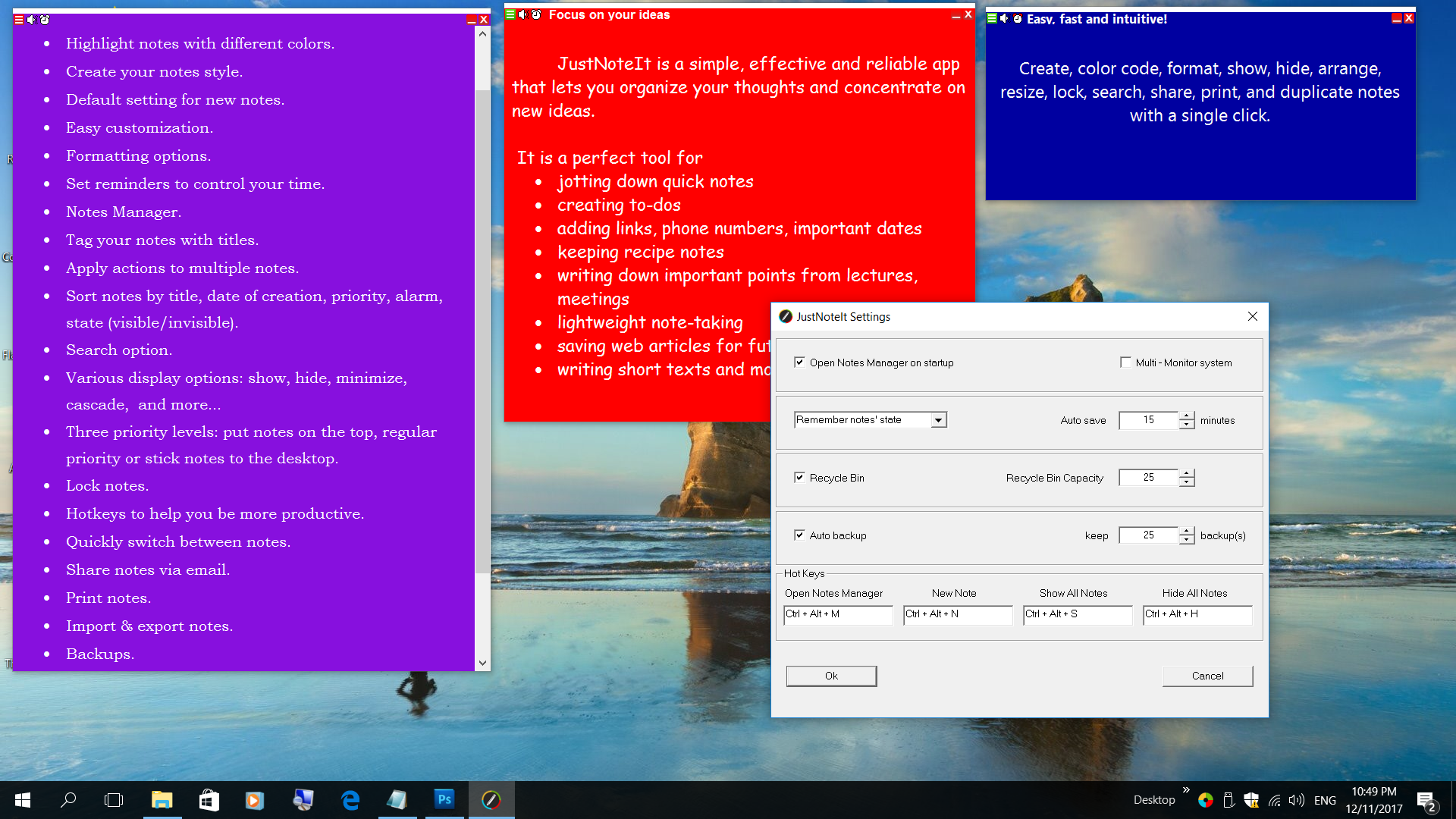
If the Open Notes Manager on startup option is selected, when you run the program, you will be presented with the Notes Manager window with the list of your notes and reminders. When you run the program first time this list is empty. In the Notes Manager window you can quickly add a new note, show, hide, delete, or print your notes or set an alarm.

New - creates a new note
Show - places selected notes on top
Hide - hides selected notes
Delete - deletes selected notes
Print - prints selected notes
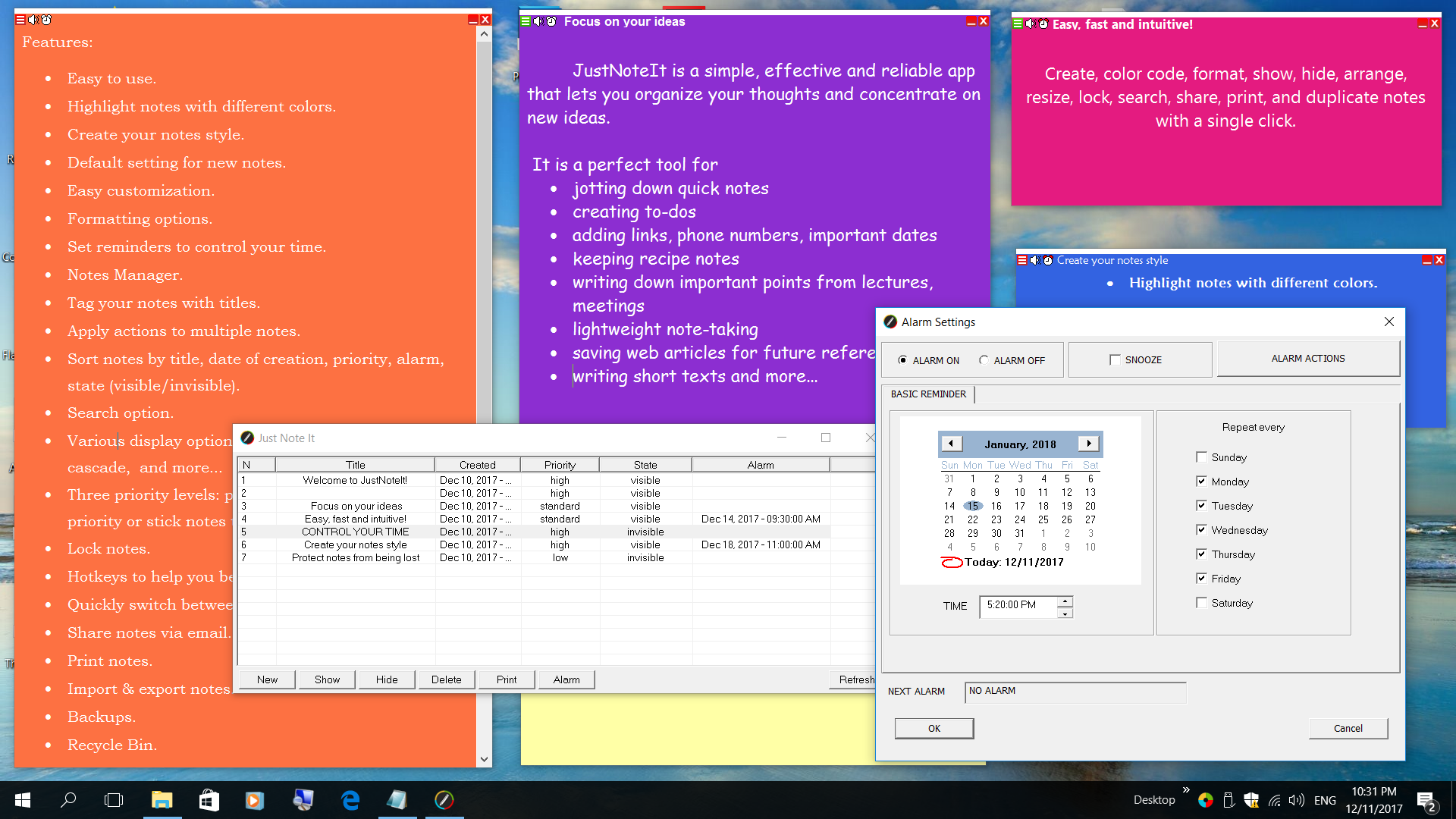
Alarm - shows information about an alarm
Refresh - refreshes the list of notes
To show or hide an individual note, just double-click it in the list.
Find
The Find option makes it easy find a note you need.

Open the 'Find' window and type in the text.
Then choose if you want to search in all notes or exclude minimized and locked notes.
To limit the search you can select the 'Match whole word' and 'Case sensitive' options
Recycle Bin
If you enabled the Recycle Bin option, deleted notes are moved to the Recycle bin.
To restore a deleted note, select it and click Restore.
Import Notes
This option will be useful if you need to transfer your notes to another computer or restore notes from a backup in case of corrupting your notes database or accidental deleting notes.
Export Notes
With Sticky Notes, you have the option to save your notes for backup purposes, or for easy transfer amongst different computers.
Selecting the Export option will open the Save dialog where you can select where to save your notes.
Save
You do not need to save your notes manually. Sticky Notes saves them automatically when you create notes or make any changes.
The program will automatically save all information.
In addition, notes are saved automatically every 15 minutes. This interval can be changed in the Program settings.
You can also force the saving of a new or edited note by clicking Save in the Main menu.
Note Menu
The Note menu can be accessed from each note by clicking on the icon in the upper-left corner.

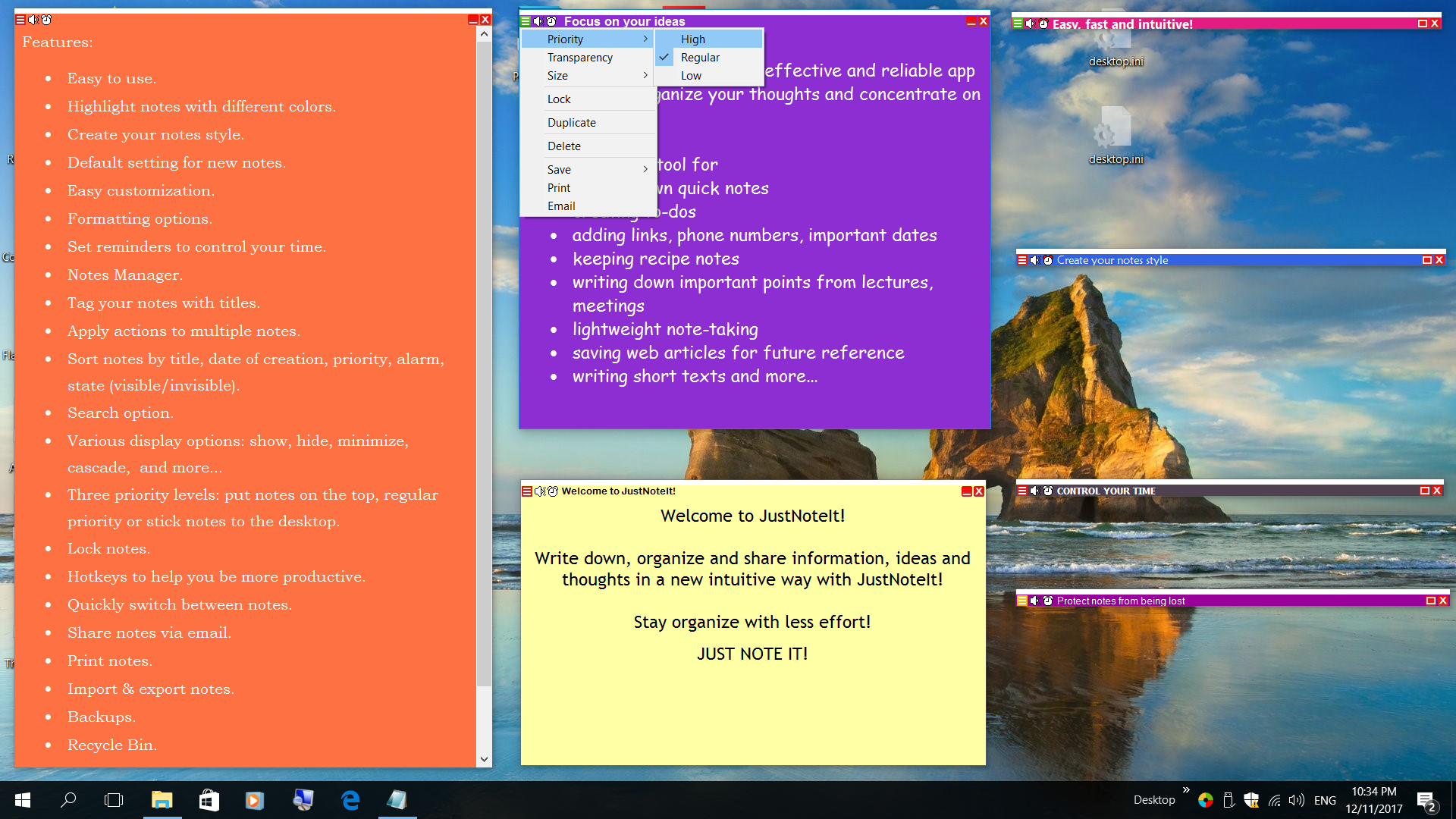
It provides quick access to certain actions such as 'Lock', 'Save', 'Duplicate', 'Import file', 'Delete', 'Print', 'Send' and changing priority, transparency, size.
There are many different actions you can perform on an individual note.
Priority
Changes note's priority.
High - select this level to have a note always on top of other windows
Standard - standard windows order
Low - select this level to have a note on the desktop. The note will be placed on top of other windows only when you show it and it is in focus
Transparency
Displays the current opacity level. Use the slider to change the note's transparency.
Size
To resize a note, you can drag an edge or corner of the note.
Set size - specify size in pixels
Maximize - maximize a note
Lock
Locks a note to prevent accidental editing or deleting. Locked notes support the read-only mode.
Save
You can save an individual note to a file by selecting 'Save' from the Note Menu. This will open a Save dialog and you can select to save the note as rtf/txt file or save as picture. It could be useful if you need to transfer one note to another location or create a copy of your note.
Duplicate
Duplicates a note
Import file
Opens the dialog window where you can choose the file you want to import. Sticky-Notes supports importing txt and rtf files.
Delete
Opens the Delete dialog window. If you do not need a note anymore, click Yes to confirm deletion.
To delete a group of notes, use the Notes Manager.
Print note
Opens the Print window.
Send note
Opens the 'Send' window
Specify the computer where you intend to send a note.
Note context menu
There are many ways to format and customize your note.

To customize a sticky note (change color, font), right-click the note and then select the desired option.
Edit and customize title area

To edit a title, double-click the title area or right-click the title area and select Edit Title. When you are done editing, press 'Enter' or click the 'Finish title editing' icon.
Font color - use this to set the font color of the title
Background color - select the color of the title
Font - choose the title font and size
Edit and customize a note
Font - choose the font and size
Font color - use this to set the font color
Background color - select the note background color
Background image - select the background image
Reset Background
Paragraph Settings
Line spacing
Alignment
Bulleted and numbered lists
Select the text you want to format and use the hotkeys combinations listed below or select format options from the right-click menu.
Font size
Increase font size Ctrl+Shift+Right Arrow
Decrease font size Ctrl+Shift+Left Arrow
Or you can highlight the text, right-click the note, select Font and select font size.
Create a bulleted list
Press Ctrl+Shift+L
or
Place the cursor where you want to begin a bulleted list.
Right-click the note, select Paragraph Settings and select 'Bulleted' from the 'Bulleted and Numbered list' drop-down menu.
Start typing the text for the first item. To create the next item press Enter.
To end the bulleted list press Enter twice.
Create a numbered list
Press Ctrl+Shift+L twice
or
Place the cursor where you want to begin a numbered list.
Right-click the note, select Paragraph Settings and select the format you need from the 'Bulleted and Numbered list' drop-down menu.
Start typing the text for the first item. To create the next item press Enter.
To end the numbered list press Enter twice.
Text alignment
Use the hotkeys:
Left alignment Ctrl+L
Right alignment Ctrl+R
Center alignment Ctrl+E
Or right-click the note, select Paragraph Settings and select Left, Right or Center from the Alignment drop-down menu.
Line spacing
Use hotkeys:
Ctrl+1 Line spacing = 1 line
Ctrl+2 Line spacing = 2 lines
Ctrl+5 Line spacing = 1.5 lines
Or right-click the note, select Paragraph Settings and select the type of line spacing.
Hotkeys for basic actions:
Ctrl+Tab Tab
Ctrl+A Select all
Ctrl+C Copy
Ctrl+V Paste
Ctrl+X Cut
Ctrl+Z Undo
Ctrl+Y Redo
Ctrl+Shift+A Set all caps
All of these commands are also available via the right-click menu
|
|
|
|
|